
All Categories
-
Car remote controls
-
OEM car key
-
Car key shells
- Enhanced key shell
-
Emergency&Flip key blade
- Motorcycle key shells
- Motorcycle key remotes
- Heavy machinery key
-
Car lock
- Car lock accessories
-
Locksmith tools
- Car&Motor Lishi 2 in 1
- Sided groove-Lishi 2 in 1 Inner groove-Lishi 2 in 1 Flat key-Lishi 2 in 1 Motorcycle Lishi 2 in 1
- Residential tools-①
- Wafer lock tool Cross lock tool Magnetic lock tool Specialized lock tool Straight shackle padlock tool
- Transponder Chip
- Keydiy Products
- VVDI/Xhorse Products
- KYDZ Products
-
Autel/Lonsdor/Yanhua/Others
- Car alarm /OBD diagnostic tools
-
Key protector/TPU/Key Cover
- Cutting Machine
Cart


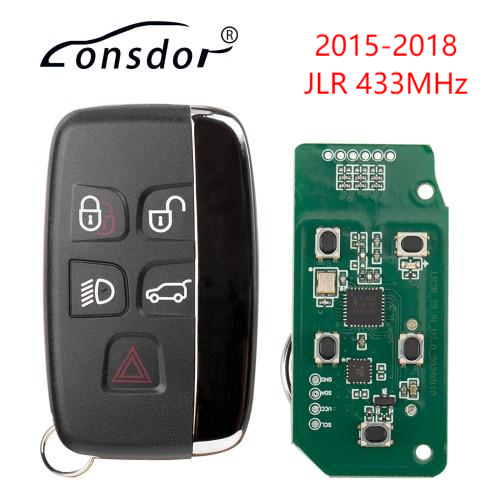
【Replace with Lonsodr JL30 】Lonsdor Specific Smart Key for 2015-2018 Land Rover Jaguar 5 Buttons FSK 433MHzItem NO.: Lonsdor-YKJLR004
-
Customized Requirements
- Quantity
-
Stock ( 0 )

-
- Product Name: 【Replace with Lonsodr JL30 】Lonsdor Specific Smart Key for 2015-2018 Land Rover Jaguar 5 Buttons FSK 433MHz
- Item NO.: Lonsdor-YKJLR004
- Frequency: 434mhz
- Weight: 0.05 kg = 0.1102 lb = 1.7637 oz
- Volume: 166 CBM
- Category: Autel/Lonsdor/Yanhua/Others > Lonsdor Products > Lonsdor Smart keys
- Creation Time: 2025-10-30
Lonsdor K518ISE and K518S adds 2015-2018 Land rover and Jaguar write-to-start via OBD
Emergency start
smart entry/start
remote control
All keys lost by OBD
This function require to use Lonsdor specific key and open JLR License.
How to add Lonsdor JLR Land Rover Range Rover Smart key and Write ID via K518PRO
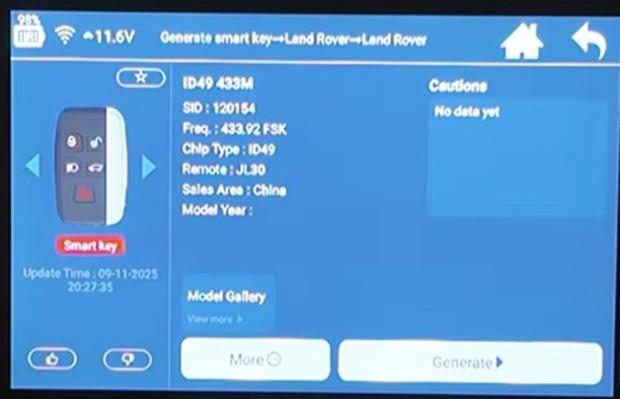
1. Click Generate smart key
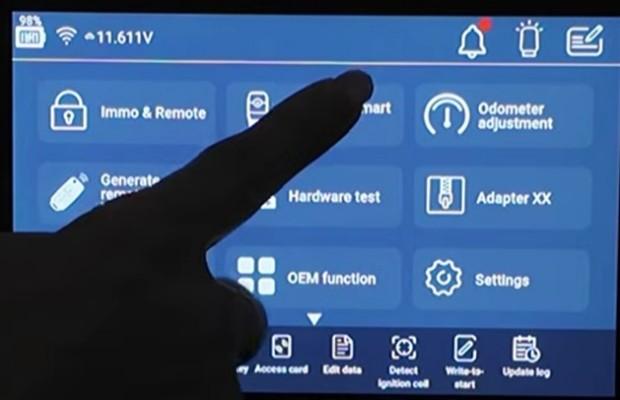
2. Click Land Rover
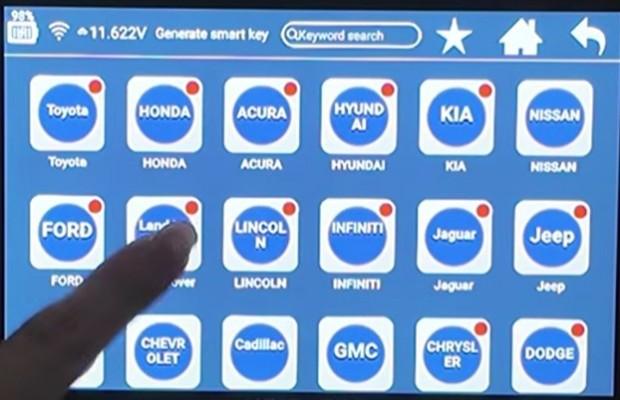
3. Select ID49 433M
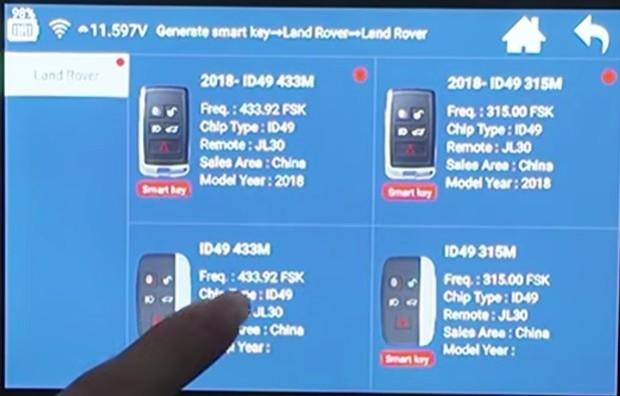
4. Put our Lonsdor smart key into the card slot
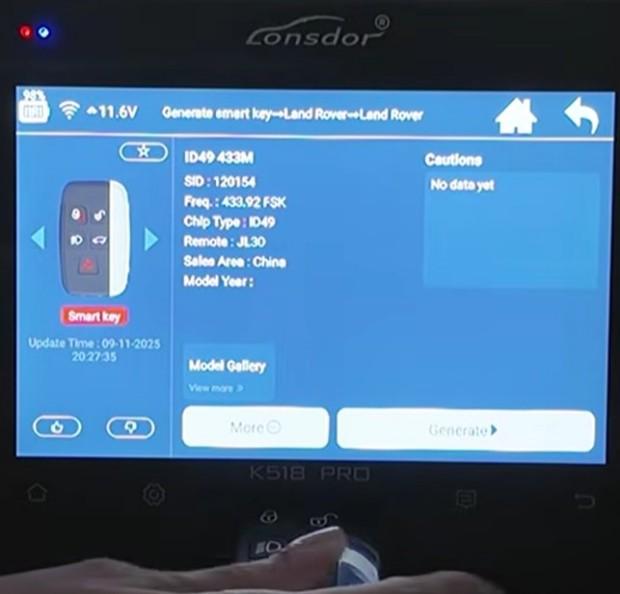
5. Click Generate
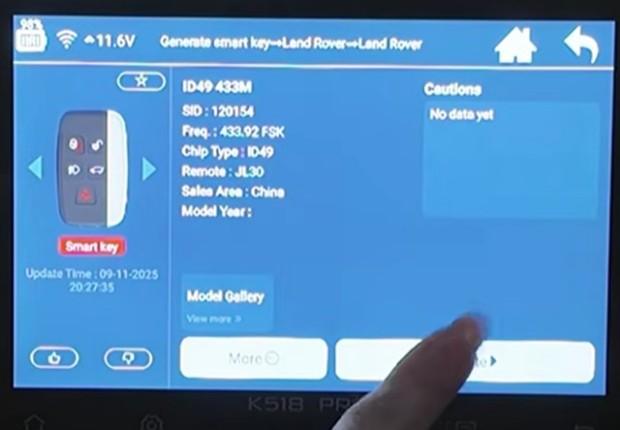
6. Click OK
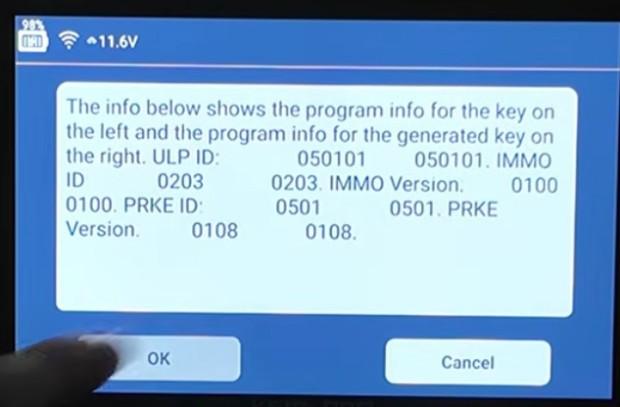
7. After generation is successful, return to the main menu
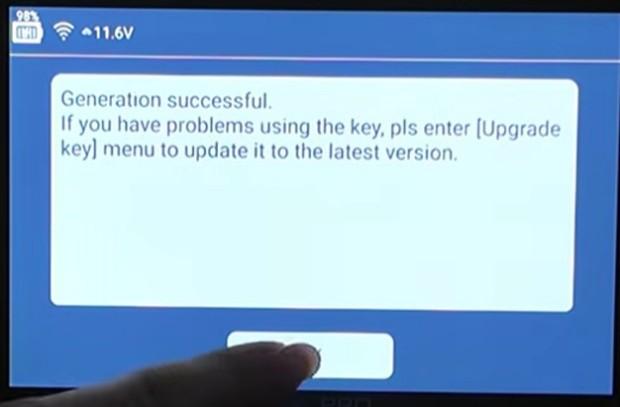
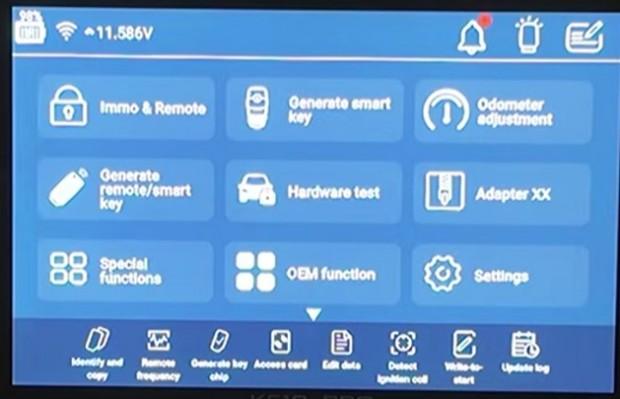
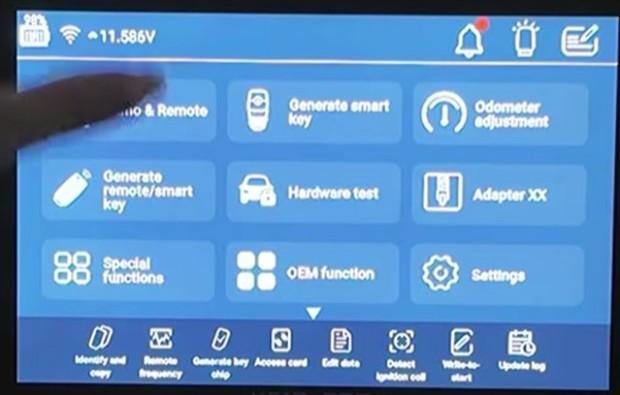
8. Click Immo & Remote
9. Click Land Rover
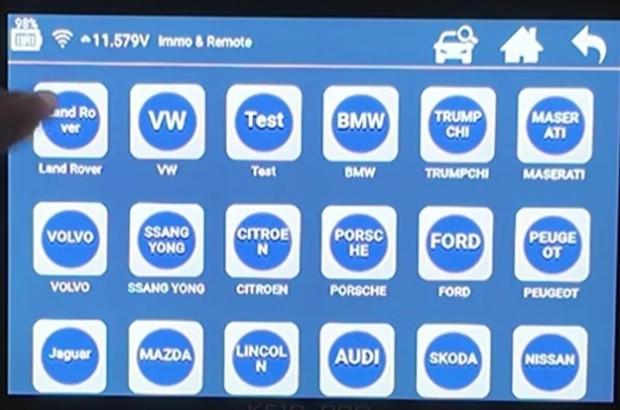
10. Click Select from vehicle
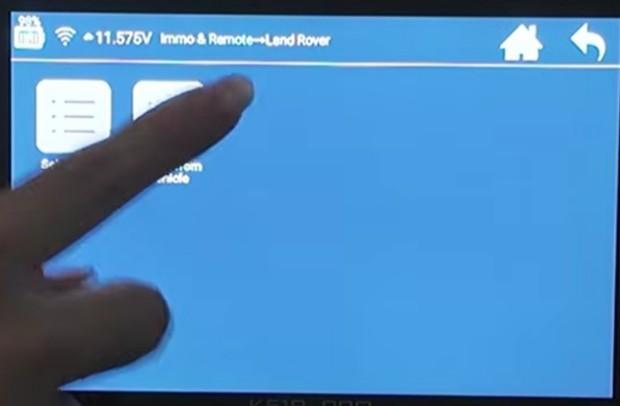
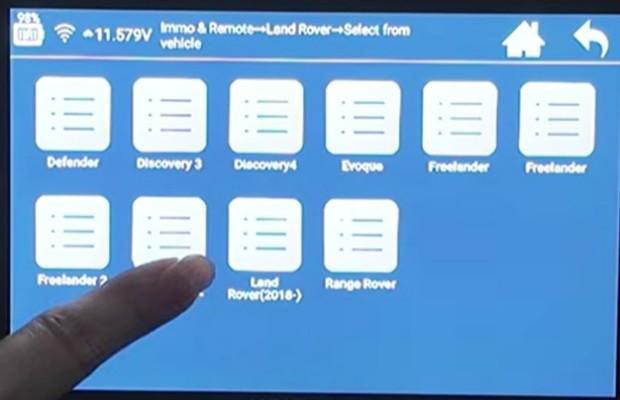
11. Click Land Rover (2015-2018)
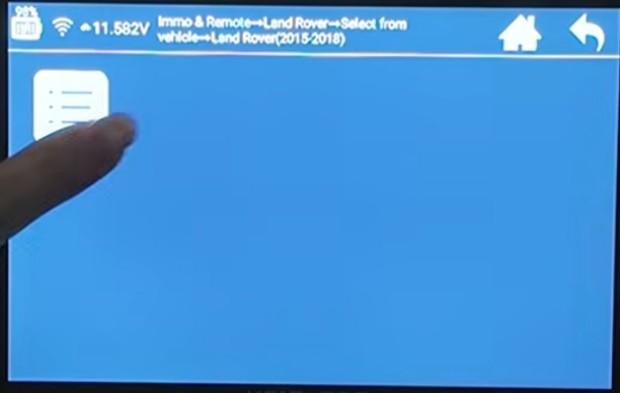
12. Click Program smart key
13. Click Type 1 (via OBD)
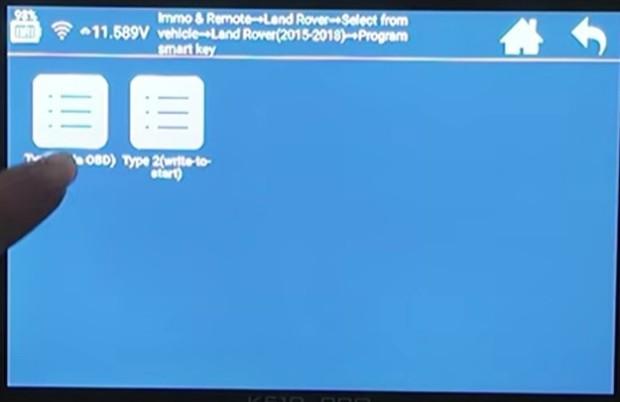
14. Click Write smart key (via OBD)
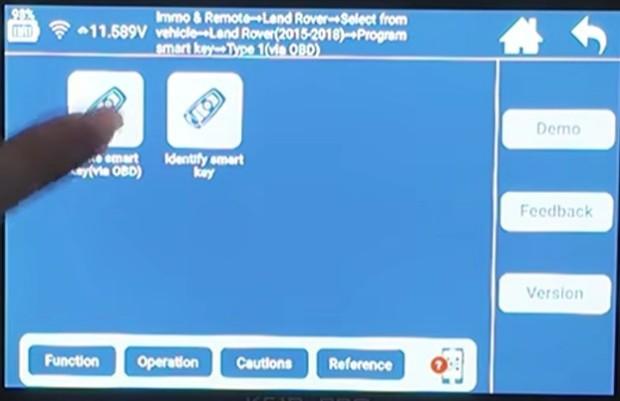
15. Read the prompt page carefully and click OK
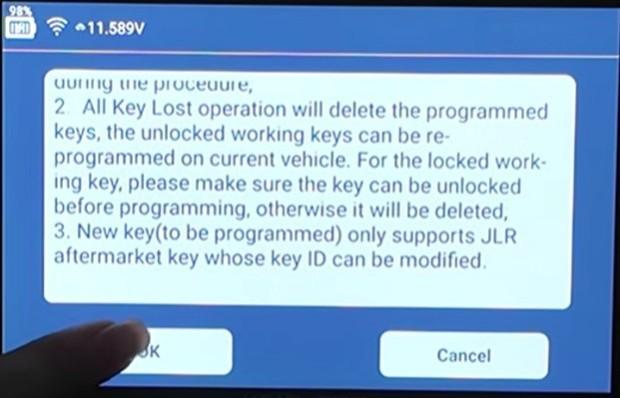
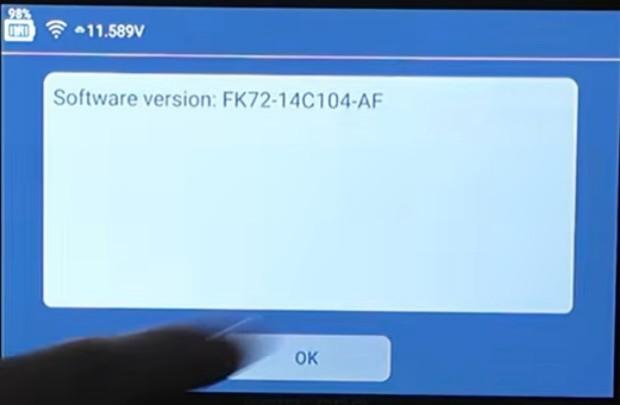
16. Click OK
17. If you have the working car key, click OK
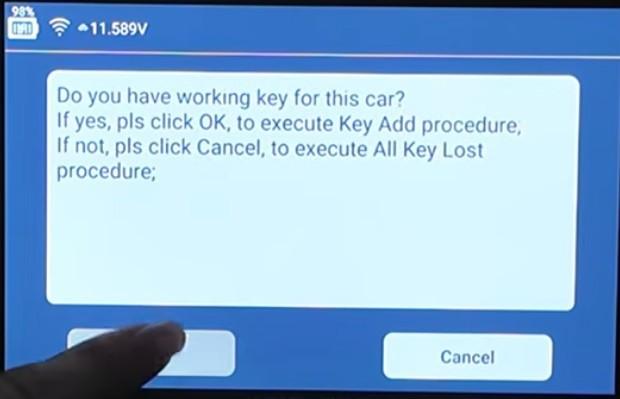
18. Put the original car key into the card slot of the K518 PRO
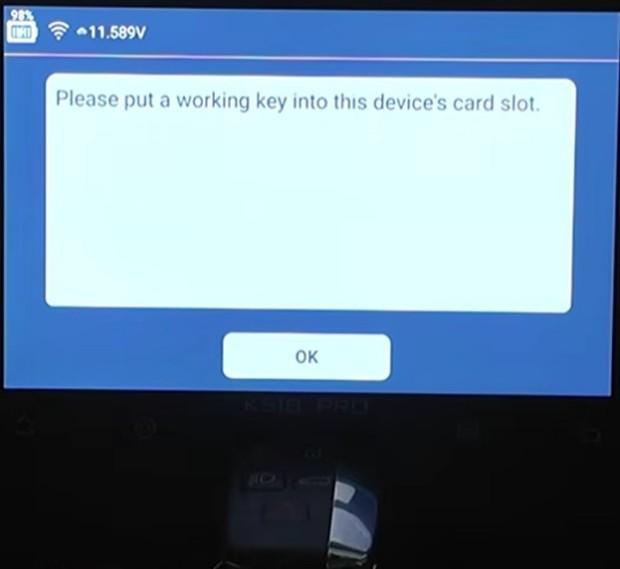
19. Click OK
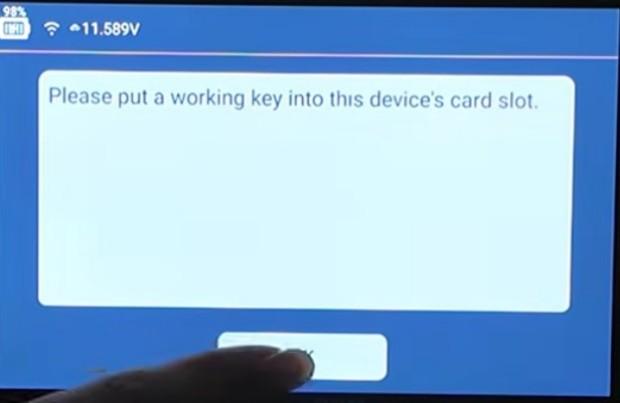
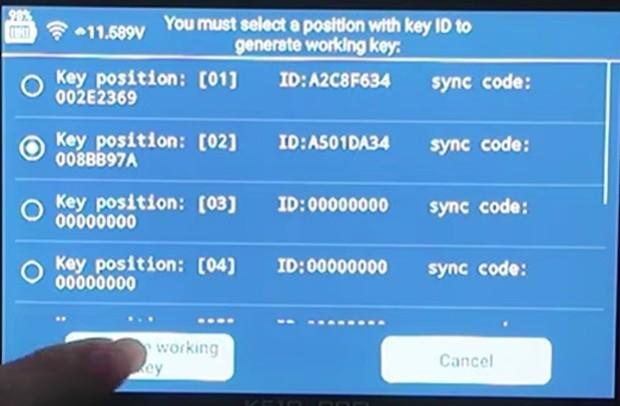
20. Key position [01] is the original car key. Choose key position [02] and click the Generate working key button
21. Put the aftermarket key into the card slot, and click OK
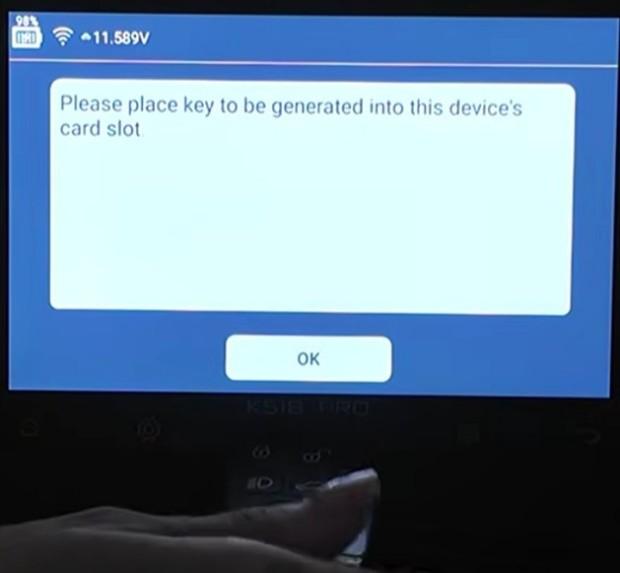
22. Choose the JLR aftermarket key whose ID can be modified and click OK (the device will automatically write the correct ID)
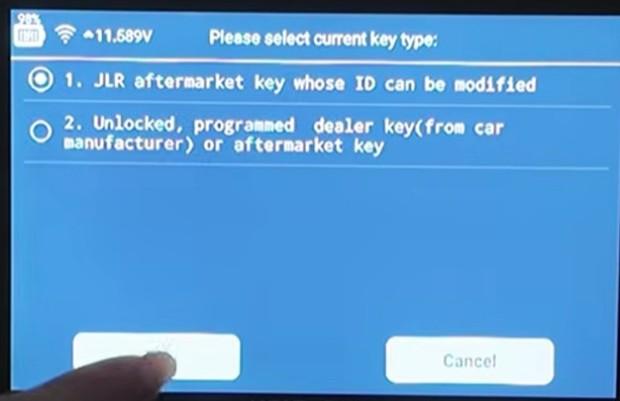
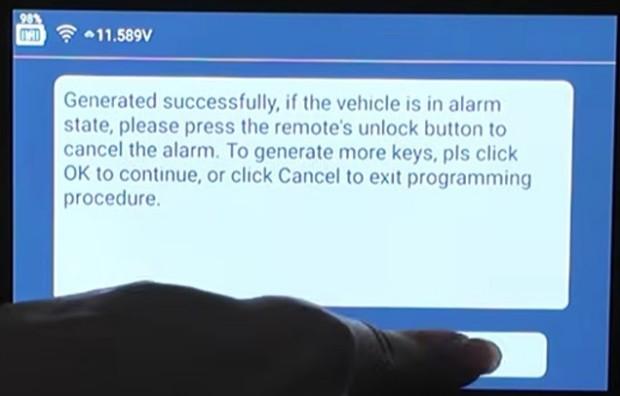
23. Generated successfully. No need to continue generating, so click Cancel
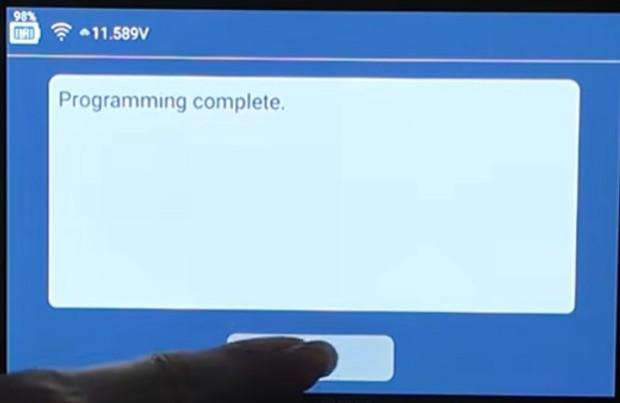
24. Program complete. Click OK
You May Also Like






Recently Viewed
-
-
 For Ssangyong key bladeUS$ 0.50
 -
-
-
-

-
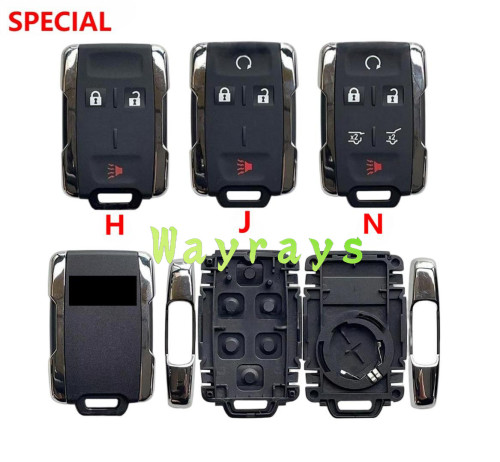 For Chevrolet key shell with OEM logo placeUS$ 1.89 ~ US$ 2.20
 -
-

-
-

-

- Help center
- About Us
- Contact Us
- My order
- Change password
- About Shipping
- Shipping Methods
- About Payment
- Payment Methods
- About Return
- Return Policy&Return Method
- Newsletter
Customer Reviews